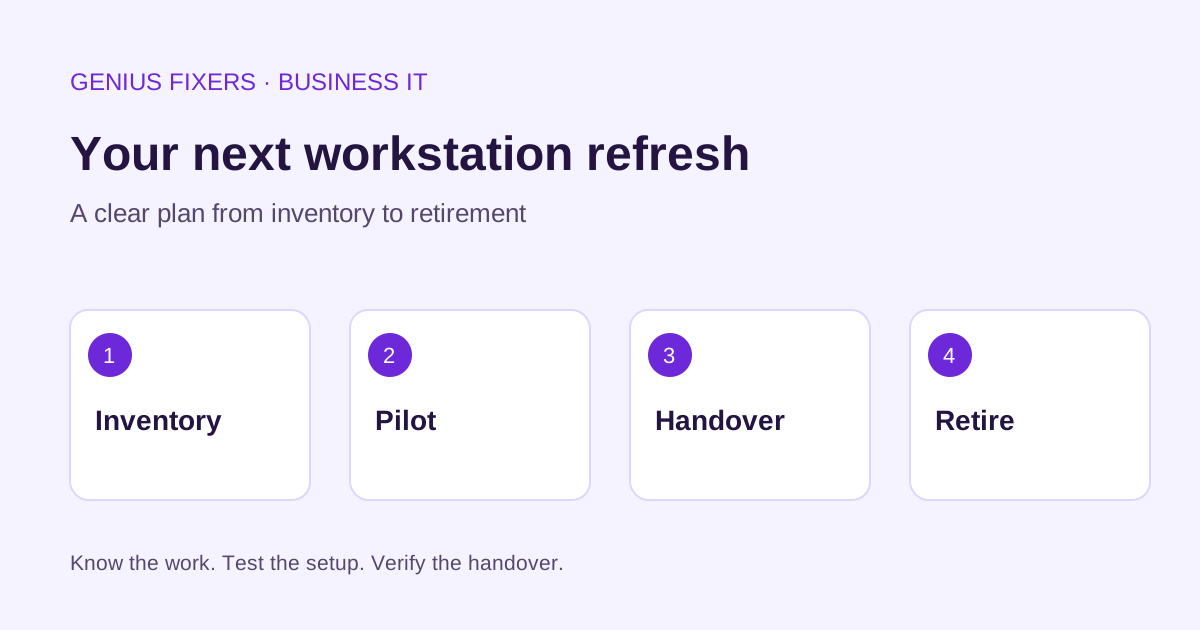
Plan a workstation refresh around the work
Plan an office computer refresh with a device inventory, application checks, data migration, pilot rollout and clear handover steps for your small business.
Give each replacement a clear owner
Agree who selects the configuration, who migrates approved data and who confirms the employee can work. A staged handover helps the team identify unresolved issues before retiring the old computer.
Inventory the work before choosing the computer
Replacing office computers is easier when the buying decision starts with what employees do. A receptionist, accountant and designer may need different software, screens and accessories. For a small business in Virginia, Maryland or Washington, DC, the goal is a reliable working setup with a manageable transition.
Record each computer's assigned user, model, operating system, business applications, accessories and support history. Ask employees which tasks are slow or unreliable. Separate a hardware problem from a network, application or account problem before assuming a replacement will solve it.
Build a replacement brief for each role
List the work the new device must support: video meetings, large spreadsheets, specialist applications, printing, scanning or multiple monitors. Include the docking station, display connections, webcam and any equipment that must remain in use.
Confirm application and accessory compatibility with the relevant vendors before buying. Avoid choosing specifications solely from an advertised discount. Ask for a written configuration and support scope so competing quotes cover the same equipment, setup and migration work.
Find the data that needs to move
Ask where each employee saves work. Documents may be spread across an approved cloud service, local folders, shared drives and application-specific storage. Identify the authoritative copy and confirm who can access it.
Verify that required files can be recovered before changing the old device. Do not treat a successful synchronization icon as a complete migration test. Have the employee identify a few representative files and workflows to check on the replacement.
Pilot one complete workstation
Prepare one representative computer before replacing an entire team. Install approved applications, apply the organization's security configuration, connect the normal accessories and test with an authorized account.
The Federal Trade Commission recommends maintaining an inventory of hardware, software, data and services, updating software, backing up files, using multifactor authentication and encrypting sensitive data. Include these controls in the handover checklist rather than postponing them until after staff resume work.
Schedule the handover around real work
Choose a window that avoids payroll, reporting deadlines and other essential tasks. Tell the employee what will change, what they should save, when the old computer becomes unavailable and where to get help.
Use a short acceptance checklist: sign in, open required applications, access approved files, join a test meeting, print a sample document if needed, and confirm management and security reporting. Record any unfinished item with an owner and follow-up date.
Retire the old device deliberately
Keep the old computer in controlled storage while the agreed acceptance checks are completed. Do not leave it active indefinitely as an undocumented spare, and do not pass it to another employee with the previous user's files still present.
After authorized retention needs are resolved, arrange an appropriate data-sanitization and disposal process. Record the asset identifier, disposition and responsible person. Deleting files is not a reliable substitute for a documented sanitization process.
Plan the next replacement before it becomes urgent
Maintain a rolling list of devices that need review, with the reason, priority and expected business impact. Support status, recurring failures, compatibility and employee needs are more useful than a single replacement age for every machine.
Genius Fixers can discuss your workstation refresh and ongoing managed IT requirements. Bring your device count, essential applications, current issues and preferred maintenance windows. A clear scope helps you budget for equipment, setup and continuing support together.
Reference: FTC cybersecurity guidance for small businesses, reviewed October 25, 2026.
Frequently asked questions
Must every employee receive the same computer?
No. Standardize where practical, but match the configuration to the applications, accessories and mobility needs of each role.
Should we replace all office computers on the same day?
A pilot followed by smaller groups can make it easier to discover compatibility issues and support staff. Choose the rollout size around business deadlines and available support.
What should we check before disposing of an old PC?
Confirm the required data was transferred and accepted, resolve retention requirements, authorize sanitization, and record how the device was retired.
Contact Genius Fixers about your office refresh or explore our managed IT services.