How should a small business manage iPad updates?
Plan business iPad updates with an inventory, app testing, staged rollout, user reminders and completion checks. A practical checklist for small teams.
Give every update an owner and a completion test
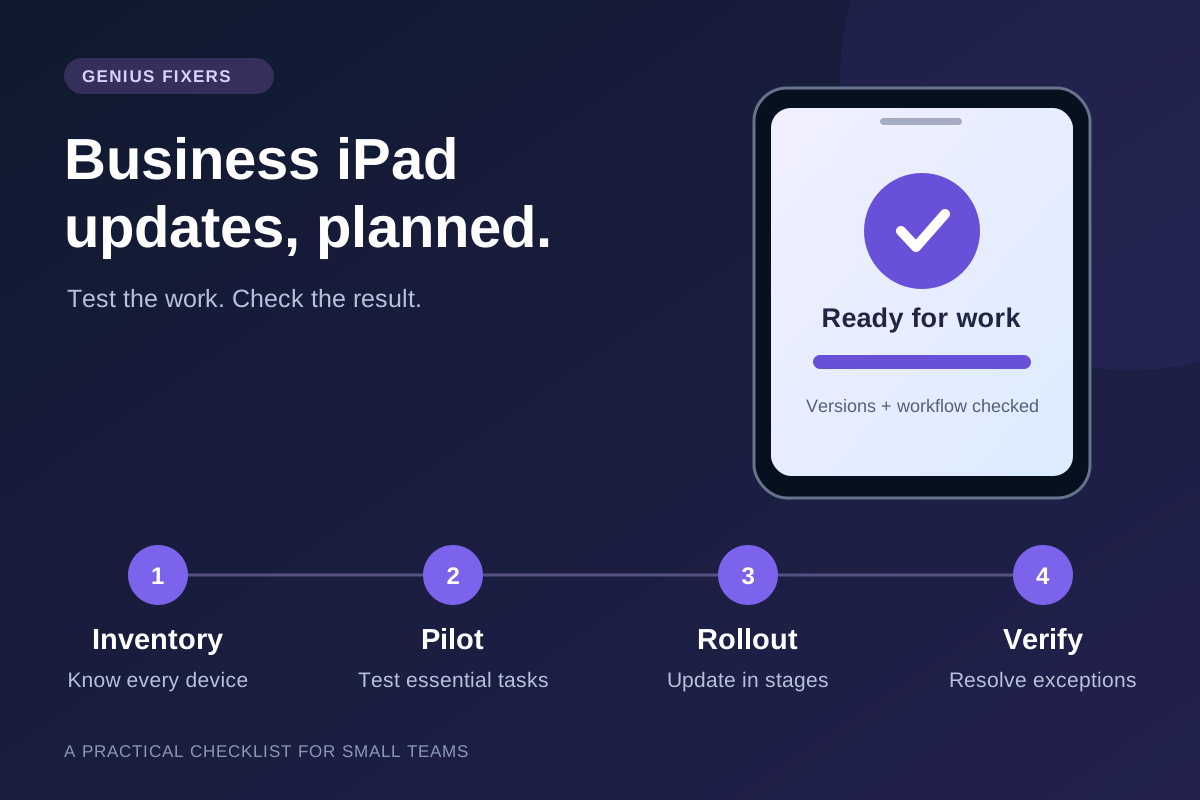
Identify who approves the rollout, who checks essential applications and who follows up on devices that miss the window. Use a small pilot before wider deployment, and close the work only after checking both installed versions and the business tasks the iPads support.
1. Inventory the iPads before choosing an update date
A reception iPad, a field tablet and a manager's personally owned device should not automatically receive the same policy. Start with a device list that connects each tablet to its business purpose. For every company-owned iPad, record:
- Asset identifier, model and assigned employee or location.
- Current iPadOS version, business-app versions and last management check-in.
- Enrollment method and supervision status, confirmed in your management console.
- Critical accessories, such as a printer, scanner, keyboard or payment terminal.
- Business data stored locally, the approved recovery method and the person who can validate it.
- Acceptable maintenance window and a backup way to perform the work.
Keep passwords, passcodes and recovery secrets out of the inventory. Personal devices need a separate, approved BYOD approach rather than an assumption that IT may manage the entire device.
Before selecting a target release, check that the iPad model and required applications support it. Ask the application vendor about the exact app and operating-system combination, especially for specialized reception, inspection or industry software.
2. Check which update controls your setup actually supports
Mobile device management, or MDM, provides a central place to administer enrolled devices. Apple's declarative device management lets supported devices work toward a configured state and report status. Apple also notes that available features depend on the management service, and declarative software-update settings take precedence over similar older management commands. Review your provider's current documentation rather than stacking overlapping policies. See Apple's declarative device management guidance.
Ask the administrator to show how the actual fleet handles automatic updates, deferrals, installation deadlines and exceptions. A deferral and an installation deadline solve different scheduling problems. Do not treat a delay as an indefinite exemption from security maintenance. Apple's software-update settings reference is a useful starting point, but the controls shown in your MDM may differ.
If you are choosing a platform, compare the required workflows before buying. Our Intune vs Jamf guide explains how to structure a practical evaluation.
3. Test a complete business task, not just whether an app opens
Choose a representative test iPad with the same management settings, applications and accessories as the devices used for work. Write a short acceptance checklist before starting:
- Sign in with an authorized test account using the normal authentication method.
- Open the business application and complete a representative, non-production task.
- Check saving or synchronization to the approved destination.
- Test printing, scanning or other required accessories.
- Confirm that the device reconnects to its intended network and reports to management.
- Record the installed versions, test result and person who accepted the workflow.
Use sample data where possible. Do not create real transactions or expose client information merely to prove that the tablet works. If testing finds a problem, record the affected app version, device model and symptoms so the vendor receives a useful support request.
Decide how the team will keep working if a tablet becomes unavailable. A prepared spare device or approved alternate workflow is more useful than an untested assumption that an older operating-system version can simply be restored.
4. Roll out in stages that match the business risk
The following is an illustrative plan for a 12-iPad business, not a customer case study or a fixed service schedule. Adjust the group sizes and observation period to the urgency of the update and the work each device supports.
| Stage | Example scope | Go/no-go check |
|---|---|---|
| Pilot | 1 representative iPad | Required app, sign-in, data and accessory tests pass. |
| Small working group | 3 additional iPads | Staff complete normal work and report no unresolved blocking issue. |
| Remaining fleet | 8 remaining iPads | Each device is verified or assigned a documented exception. |
Do not update every device performing the same essential job at once. Identify who may shorten the test window for an urgent security release, and who may approve a temporary exception when an application is incompatible. Every exception should have a reason, owner, next review date and an interim operating plan.
A rollout email should tell staff which devices are affected, when work may be interrupted, how to prepare and where to ask for help. Avoid vague instructions such as "leave everything on overnight" when tablets normally leave the office with employees.
5. Plan for passcodes, connectivity and shared-device use
Apple's update-enforcement guidance explains that enforcement times follow the device's local time zone and that iPadOS may require its passcode. Offline status, low battery or insufficient free space can prevent completion. An installation deadline is therefore not proof that an update finished.
Assign someone to confirm readiness before the window. Provide charging, a reliable connection and enough time away from active work. Staff should enter their own passcodes when required; they should not send them to IT in a ticket or group message.
Apple's Shared iPad mode has a specific requirement: users must be signed out for an update to install. A tablet that employees informally pass around is not necessarily configured as Shared iPad. Confirm the deployment model before applying those instructions.
6. Track app updates separately from iPadOS
An updated operating system does not establish that the business apps are current. Apple documents separate managed-app update methods, including automatic behavior and management-initiated updates. With declarative app management, specifying a particular app version stops automatic app updates. See Apple's managed-app guidance.
Maintain a short list of critical apps with their owner, approved version and vendor contact. Include app changes in pilot testing. If a version is temporarily held for compatibility, give that hold a review date rather than letting it become permanent by accident.
Before deleting or reinstalling an app as a troubleshooting step, establish where its business data lives and how it can be recovered. Apple notes that removing a managed app on iPad also removes its data container. Treat application recovery as a separate check, not an assumption about device backup.
7. Close the rollout with evidence and an exception list
Reconcile the full device inventory against the results. A useful completion record includes the target and installed iPadOS versions, relevant app versions, last check-in, workflow test result and any unresolved issue. Distinguish "policy assigned," "download in progress" and "installed and verified."
For an iPad that did not update, identify the next practical action: reconnect it, arrange access to the device, resolve storage constraints, investigate an error or obtain vendor guidance. Keep the exception open until someone verifies the outcome. Do not count an unreachable device as compliant merely because no error arrived.
Use the record to improve the next maintenance window. Repeated failures may point to an ownership problem, a device that rarely returns to the office, or a process that depends on one unavailable employee.
Frequently asked questions
Can our IT provider update every iPad without staff involvement?
Do not assume that. Available controls depend on enrollment, supervision, iPadOS and the management service. A device passcode may still be needed. Include the person responsible for each device in the update plan.
Should we use the same schedule for iPadOS and app updates?
Coordinate them, but track them separately. An operating-system update and a business-app update have different controls and compatibility checks. Test the combination your team will actually use.
What if one iPad misses the deadline?
Keep it on an exception list with an owner and next action. Check its last connection, update status and readiness, then verify installation and the business workflow before closing the exception.
Do we need an MDM platform for a few business iPads?
The decision depends on how the devices are used and the effort needed to keep them consistent. Compare enrollment, update control, app management, support and retirement workflows. A small fleet still needs clear ownership and a reliable completion record.
Build an update process your team can maintain
Business iPads need the same clear ownership as laptops, accounts and cloud applications. If your team is working around missed updates or inconsistent app versions, contact Genius Fixers to discuss your device-management requirements. Explore our managed IT services for businesses in Virginia, Maryland and Washington, DC.
Bring your device count, enrollment details, essential apps and preferred maintenance windows. Those facts make it easier to define a realistic scope without assuming every tablet can be managed in the same way.
Technical references checked October 24, 2026. Product features and management interfaces can change; verify the settings available in your environment before applying a policy.