Quick answer: approve access, prepare the device and test the actual work
A practical new-hire IT onboarding checklist covering Microsoft 365, MFA, laptops, access approval and day-one testing for Virginia, Maryland and DC offices.
A repeatable five-stage onboarding workflow
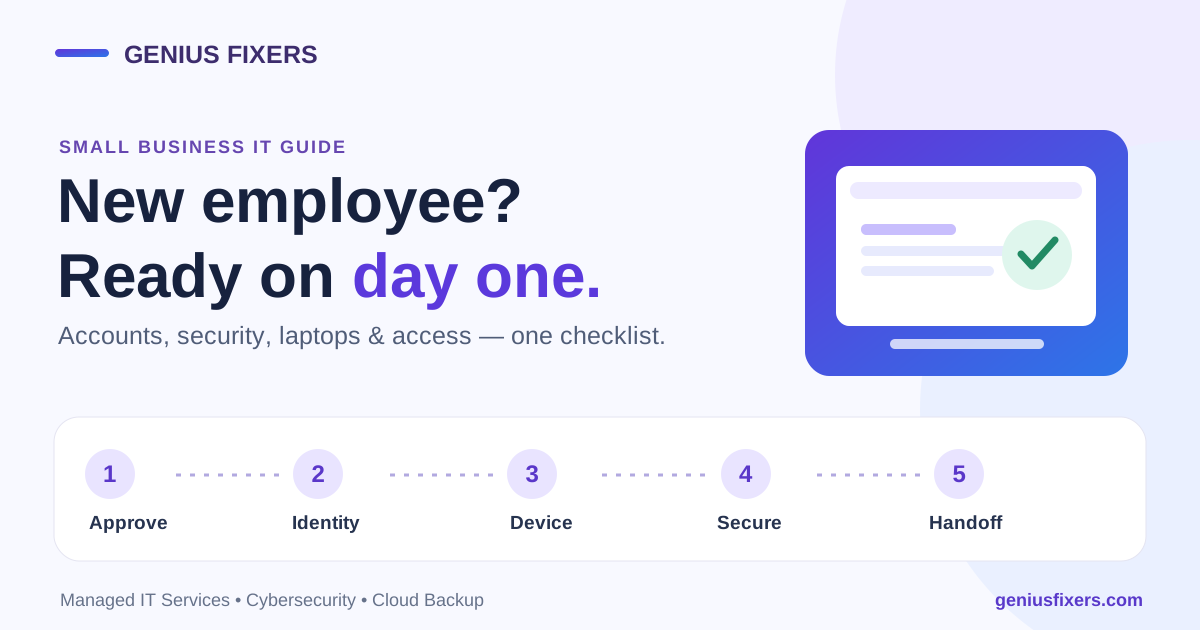
Before the start date, the manager approves role-based access, IT creates an individual account and provisions a managed computer, and the employee completes protected sign-in and practical workflow tests. A week-one access review catches unnecessary permissions and unresolved issues. The timeline, detailed checklist and handoff below help small offices make that process repeatable.
Start with one approved onboarding request
A new employee should not arrive to find that nobody knows which laptop, email account or applications they need. Give each hire one onboarding ticket with a named manager and a confirmed start date. Human Resources or the hiring manager should approve the request; IT should document what was provisioned and who authorized it.
- Identity: legal name, preferred display name, company email naming convention, department, job title and start date.
- Work arrangement: office, hybrid or remote; shipping address for company equipment if relevant; desk location and monitor needs.
- Access: job-based access profile, approved applications, shared mailboxes, calendars, file libraries and line-of-business systems.
- Approvers: manager for application access, data owner for sensitive folders and finance owner for payment authority.
- Equipment: laptop or desktop, dock, keyboard, headset, phone and any industry-specific peripherals.
Do not request or store passwords in the ticket. Record approval decisions, device identifiers and completion checks instead.
The new-hire IT checklist: who does what, and when
| When | Owner | Required result |
|---|---|---|
| 5 business days before | Manager and HR | Approve start date, job-based access, license needs and device order |
| 2–3 business days before | IT | Provision identity, assigned licenses and managed device; apply security baseline |
| 1 business day before | IT and manager | Verify sign-in policy, applications, network and file access without sharing credentials |
| Day one | Employee and IT | Complete secure first sign-in, enroll strong MFA, test actual work and receive support instructions |
| End of week one | Manager and IT | Close access gaps, remove excess privileges and record returned or unresolved items |
A small office does not need a complex HR platform to follow this plan. One approved ticket and a consistent checklist are better than five informal emails with conflicting requests.
1. Create the Microsoft 365 account and assign only needed licenses
In the Microsoft 365 admin center, an authorized administrator can create a user under Users > Active users and assign the appropriate subscription. Check license availability before the start date. The exact admin-center interface can change, and a hybrid Active Directory environment may require an identity-synchronization workflow instead of creating the account directly in the cloud.
- Create an individual account with the correct primary email domain and display name.
- Assign a license for the approved services, rather than copying a coworker's entire access.
- Apply department-based groups and the minimum SharePoint, Teams and mailbox permissions needed.
- Avoid making the employee an administrator by default. Microsoft recommends the least-privileged administrative role when elevated access is justified.
- Confirm accepted sign-in methods and an approved method of securely delivering initial access instructions.
Important distinction: assigning a license does not automatically approve access to confidential client folders or financial workflows. Those permissions belong to the relevant business owner. For file-library settings, see our SharePoint permissions guide.
2. Make strong sign-in protection part of day one
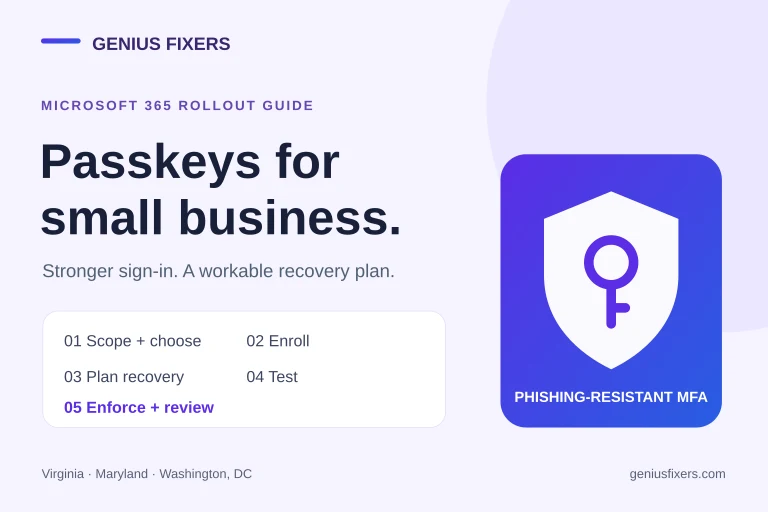
Protect the new account before giving it broad access. Set up multifactor authentication and use phishing-resistant methods where the organization's systems support them. Passkeys or FIDO2 security keys can be a strong fit, but test device compatibility and account-recovery procedures first. Our Microsoft 365 passkey rollout checklist explains the tradeoffs.
- Require the employee to register approved authentication methods during a supervised first sign-in.
- Confirm the employee can recover access through a documented help desk identity-verification process.
- Block legacy or unnecessary authentication paths where supported and appropriate.
- Use separate privileged identities for approved administrators, rather than everyday mail accounts.
- Explain that IT will never ask for an MFA approval code, account password or unexpected push approval.
Do not send a permanent password in a group email or paste credentials into a general-purpose ticket. Initial access needs an approved secure channel.
3. Prepare a managed, recoverable computer
For a company laptop, complete the build before the employee receives it. A secure device baseline typically covers operating-system updates, full-disk encryption, endpoint protection, device-management enrollment, screen-lock policy, supported application versions and reliable backup of applicable business data. Record the device's asset tag, serial number and assigned user.
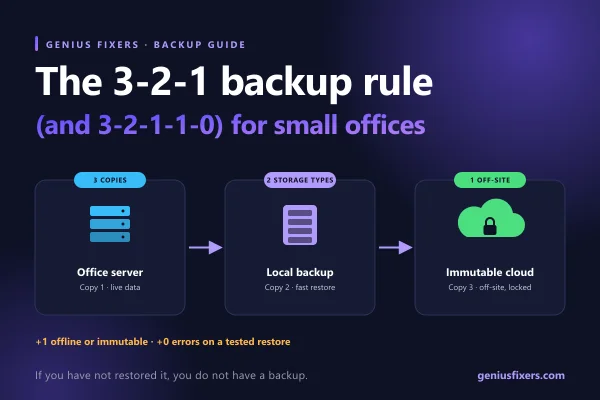
Confirm which files are stored locally and which are synchronized to company cloud storage. Device management, cloud synchronization and backup are distinct protections. See our 3-2-1 backup guide for planning recoverable copies.
- Verify encryption status and the organization's recovery-key custody process.
- Install required EDR or endpoint-protection tools, and confirm the console actually reports the device as healthy—not merely that the installer ran.
- Install approved browsers, Office apps, VPN or zero-trust access tools and line-of-business software.
- Test printers, Wi-Fi, docking stations, audio devices and any required specialty equipment.
- Arrange secure device handoff or shipping and a support contact for first-login problems.
Personal devices require a separate written BYOD policy and a proportionate management model. Do not enroll a personal phone into full-device management by default without clear employee notice and authorization.
4. Test the work, not just the login screen
A successful Microsoft 365 sign-in is not the same as a ready workstation. Ask the manager for two or three tasks the employee must accomplish on day one, then use them as acceptance tests.
Example: a new accounting assistant in a 15-person office. IT verifies Outlook and Teams, then confirms the employee can open the approved client-document library, access the accounting application under an individual account, print a permitted report, and contact the help desk. The employee should not inherit a finance director's payment-approval rights just to make the first test pass.
For remote or hybrid staff, test the real connection path from an approved external network. Note any location or device restrictions and make sure the employee knows how to report a locked account without sharing access with a coworker.
5. Give the employee a useful first-day handoff
Replace a long generic handbook with a short practical guide. Include the support portal, emergency contact route, approved cloud-storage location, password-manager process, acceptable-use policy, phishing-reporting procedure and how to request additional access. Explain the difference between company-approved AI tools and personal accounts when handling business data.
A manager should walk through the employee's expected workflow, and IT should confirm that the user—not just an administrator—can access the approved systems. Have the employee acknowledge receipt of assigned devices and required policies without asking them to disclose passwords.
Week-one audit: close the gaps and remove unnecessary access
After the first week, review the onboarding ticket against the employee's actual role. Remove temporary rights, resolve outstanding license or application issues and record who approved any exceptions. Keep the device and access inventory current.
- Access: Has the manager approved every group, folder and business application?
- Security: Is MFA enrolled, is the device managed and is endpoint protection checking in?
- Resilience: Are the employee's important business files in approved locations with the intended backup coverage?
- Support: Does the employee know how to request assistance, and is a help desk owner assigned?
- Lifecycle: Is the same inventory usable when the employee changes jobs or leaves?
Onboarding and offboarding should use the same account and asset records. For the other side of the process, review our IT offboarding checklist—the principles apply to many professional offices, not only law firms.
Frequently asked questions
How far ahead should we request IT onboarding?
Five business days is a reasonable planning target for a routine hire with equipment already available, but it is not a promise. New hardware, specialty licenses, approvals and shipping may take longer.
Should every new hire receive Microsoft 365 administrator access?
No. Standard user access is appropriate for most roles. Use a separately approved, least-privileged admin role only when duties actually require it.
Can a new employee use their own laptop?
Only if your organization explicitly allows it and documents its data, security and support expectations. A company-managed device is often simpler to secure and recover for sensitive work.
Who owns the onboarding checklist?
HR or the hiring manager owns the employee facts and requested role. Data owners approve sensitive access. IT implements, verifies and documents the technical steps. No single group should approve its own exceptions without oversight.
Build a repeatable process with Genius Fixers
Genius Fixers helps businesses in Virginia, Maryland and Washington, DC plan and manage user accounts, devices, endpoint security, cloud backup and everyday support. Whether you hire once a quarter or onboard a growing team, a consistent new-hire workflow reduces last-minute surprises and makes access easier to audit.
Need an onboarding checklist tailored to your office? Contact Genius Fixers, call 703-419-9000 or explore our managed IT plans.
Reference guidance
- Microsoft Learn: Add users and assign licenses in Microsoft 365
- Microsoft Learn: Assign administrator roles
- CISA: #StopRansomware Guide (endpoint protection and backup recommendations)
Last reviewed October 17, 2026 by the Genius Fixers IT Team, Manassas, VA.